

How to Create a Product Bundle on Artiststore
Product Bundles let you combine multiple products into one set and sell them together at a custom bundle price.
You can use bundles to create themed sets, limited-time offers, special collections, or exclusive deals for your customers.
1. Go to Bundled Sales
Log in to your Artist Dashboard and go to:
Products → Bundled Sales
Click Create Bundle to get started.
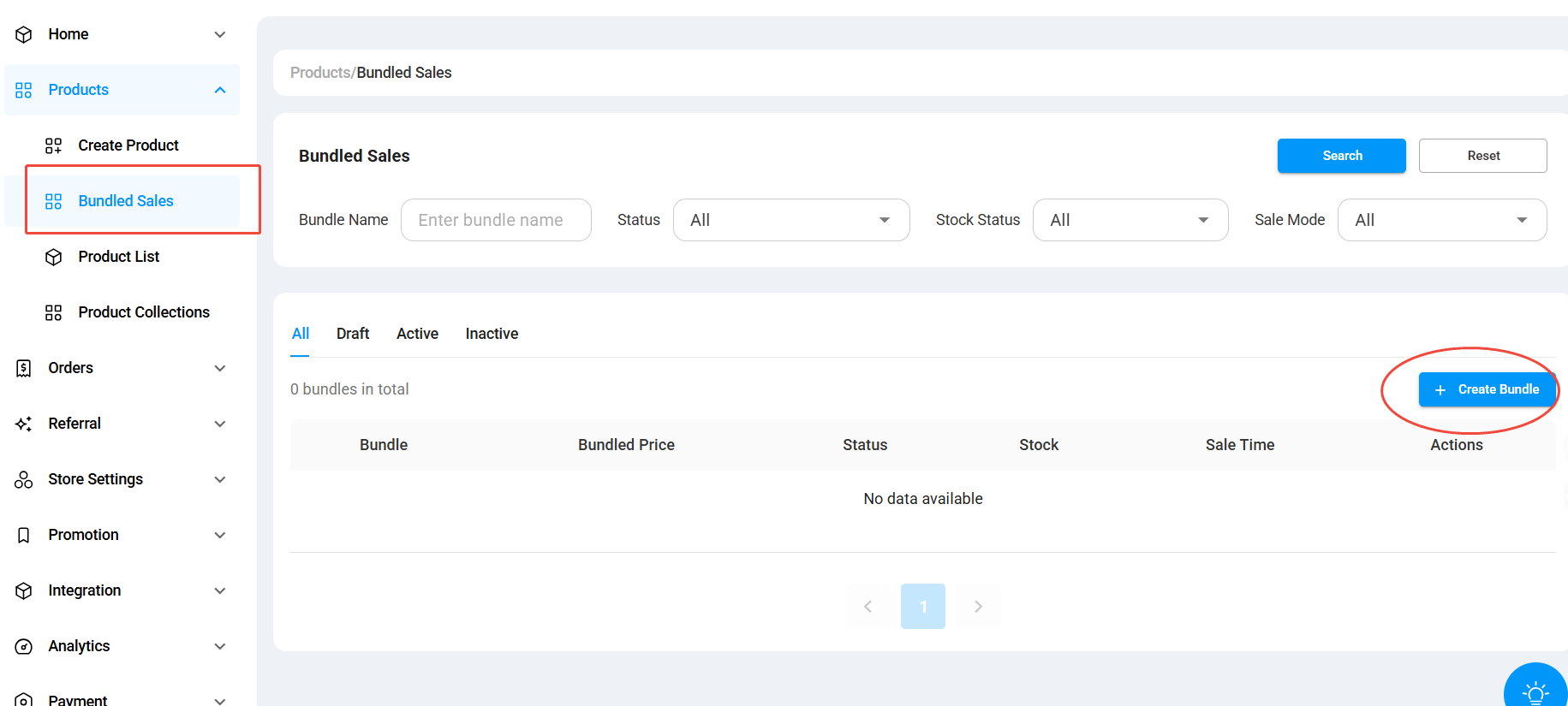
2. Select Products for Your Bundle
Under Bundle Products, click Add Product and choose the products you want to include.
You can add:
- A minimum of 2 products
- Up to 10 products in one bundle
Click Select next to each product you want to add.
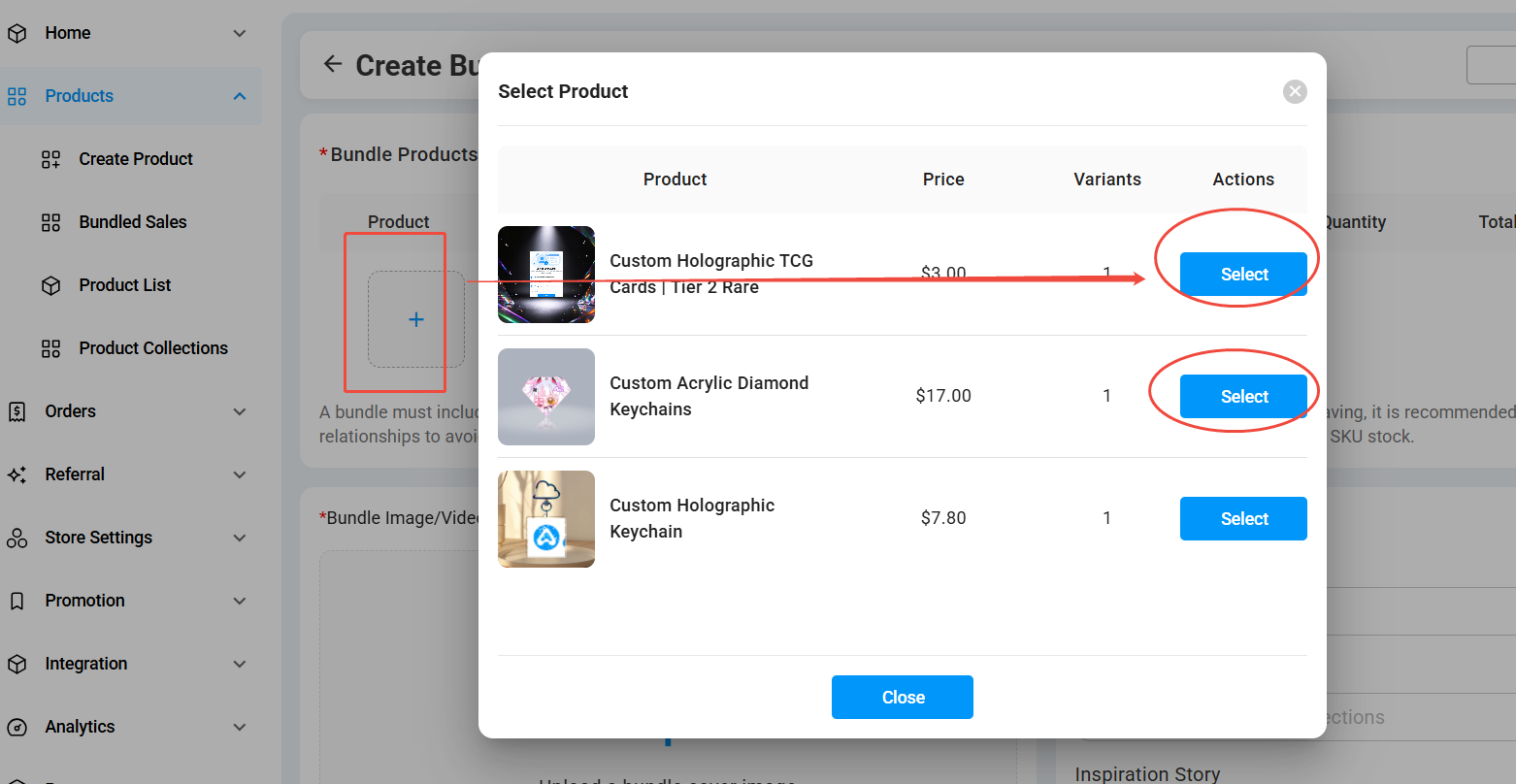
3. Set the Product Quantity
Once your products are added, choose how many units of each product should be included in one bundle.
For example:
- 1 Keychain
- 2 Trading Cards
- 1 Sticker
The total product value will update based on the quantities you select.
Note: This quantity controls how many units of each product are included in the bundle. The total number of bundles available for sale can be configured separately under Sales Settings.
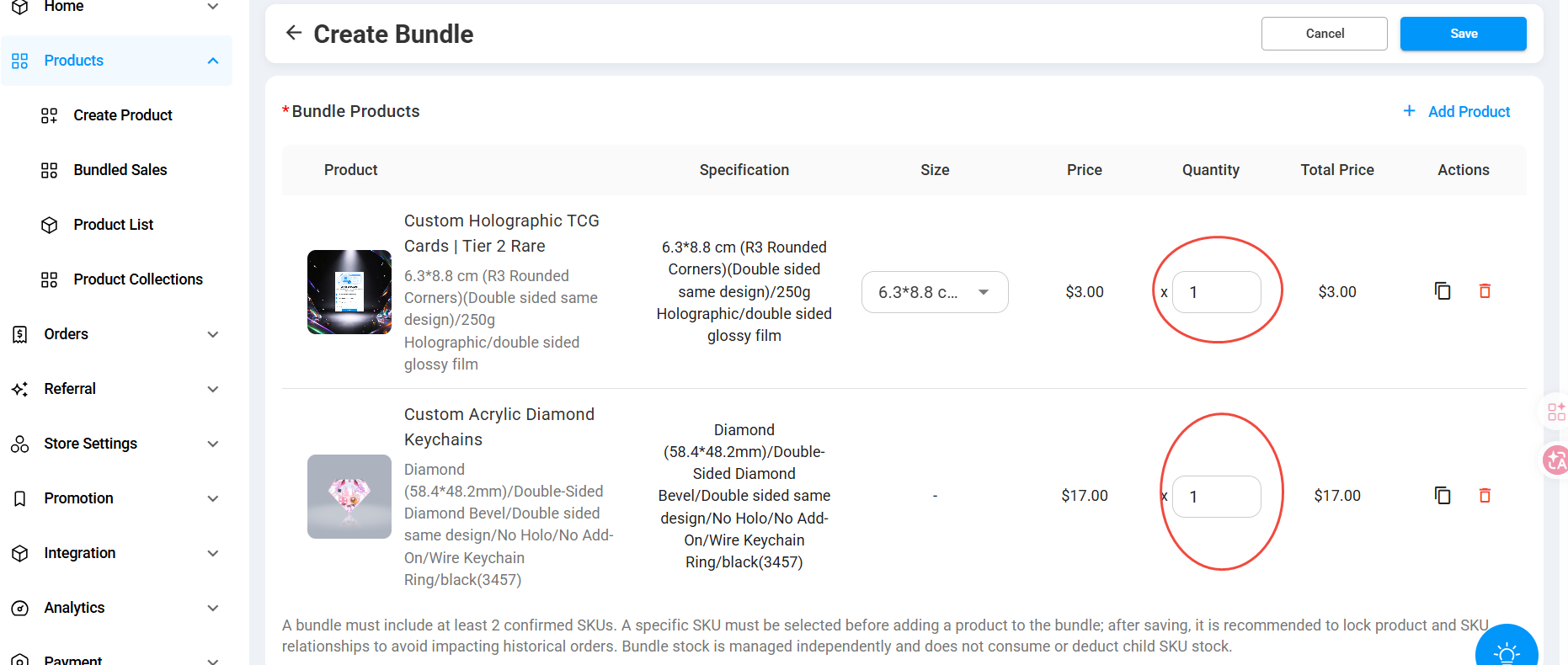
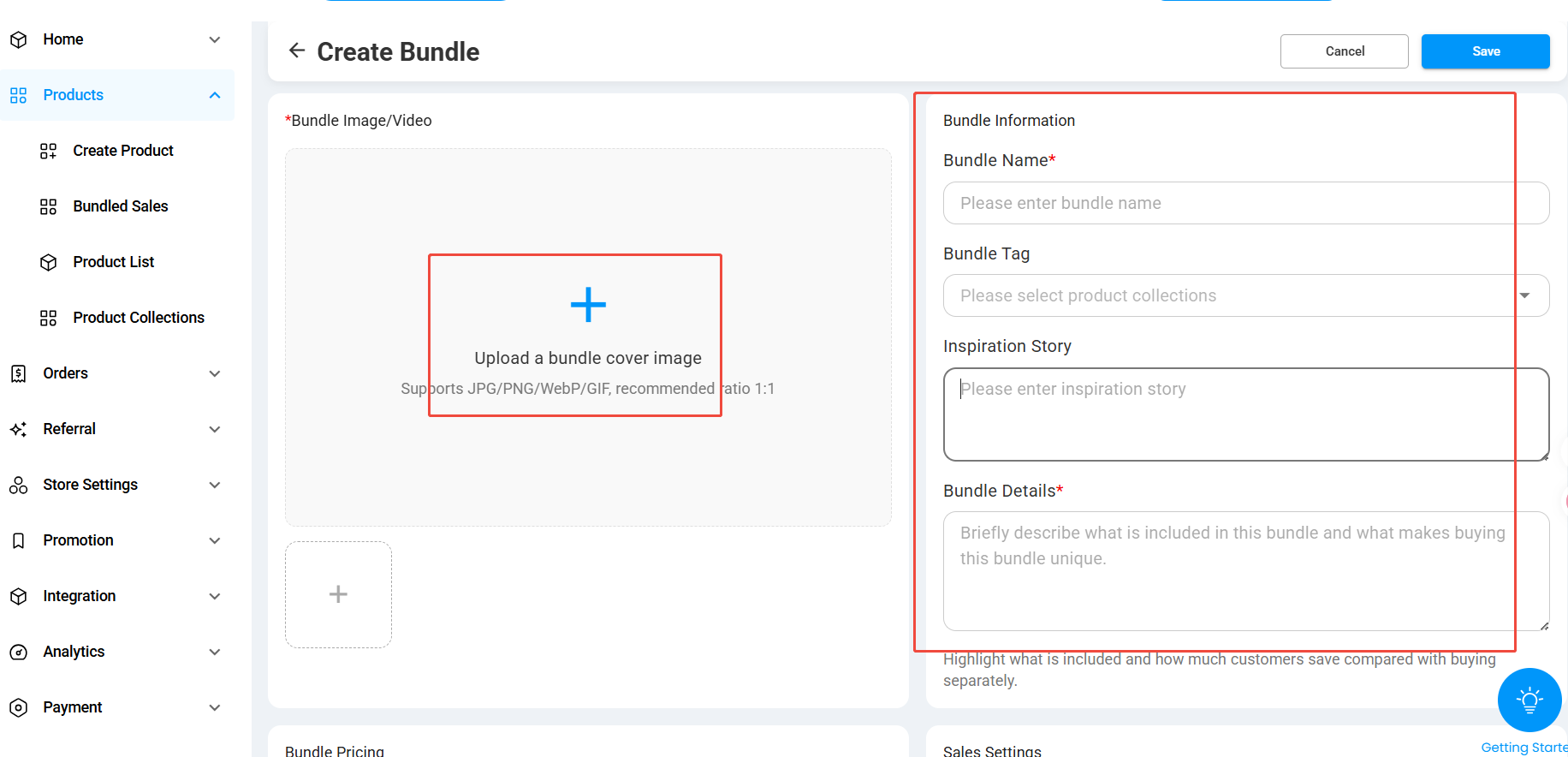
4. Add Your Bundle Image and Information
Next, customize how your bundle will appear in your store.
Upload a Bundle Cover Image and complete the bundle information, including:
Bundle Name
Give your bundle a clear and attractive name.
Bundle Tag
Choose a relevant product collection or category.
Inspiration Story
Share the idea or story behind your bundle.
Bundle Details
Let customers know what’s included and why the bundle is special.
A clear cover image and description can help customers better understand your offer.
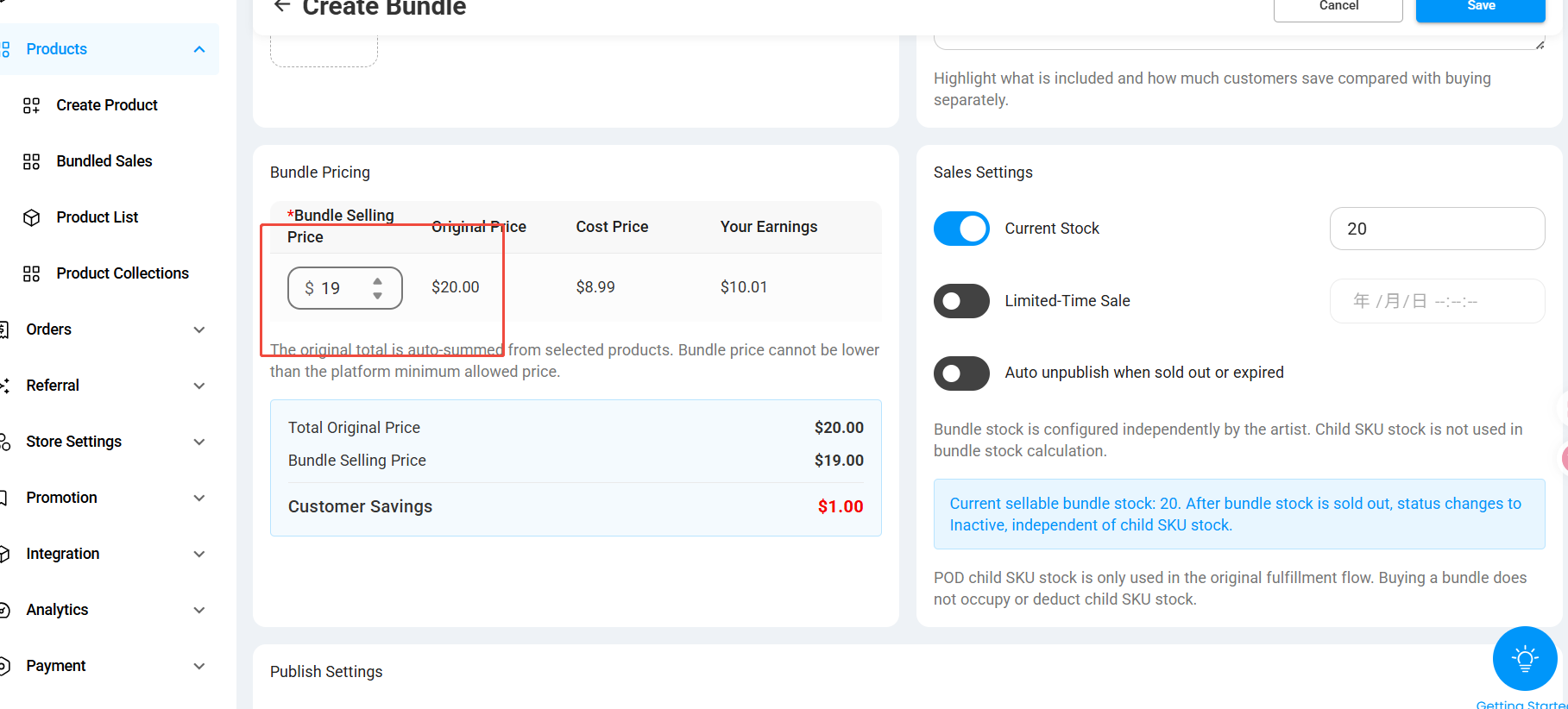
5. Set Your Bundle Price
Under Bundle Pricing, enter the selling price for your bundle.
You’ll be able to see:
- Original Price — the combined selling price of all products
- Cost Price — the total production cost
- Your Earnings — your estimated earnings from the bundle
- Customer Savings — how much customers save compared with buying the products separately
You can use this section to create an attractive bundle discount while keeping an eye on your earnings.
6. Choose Your Sales Settings
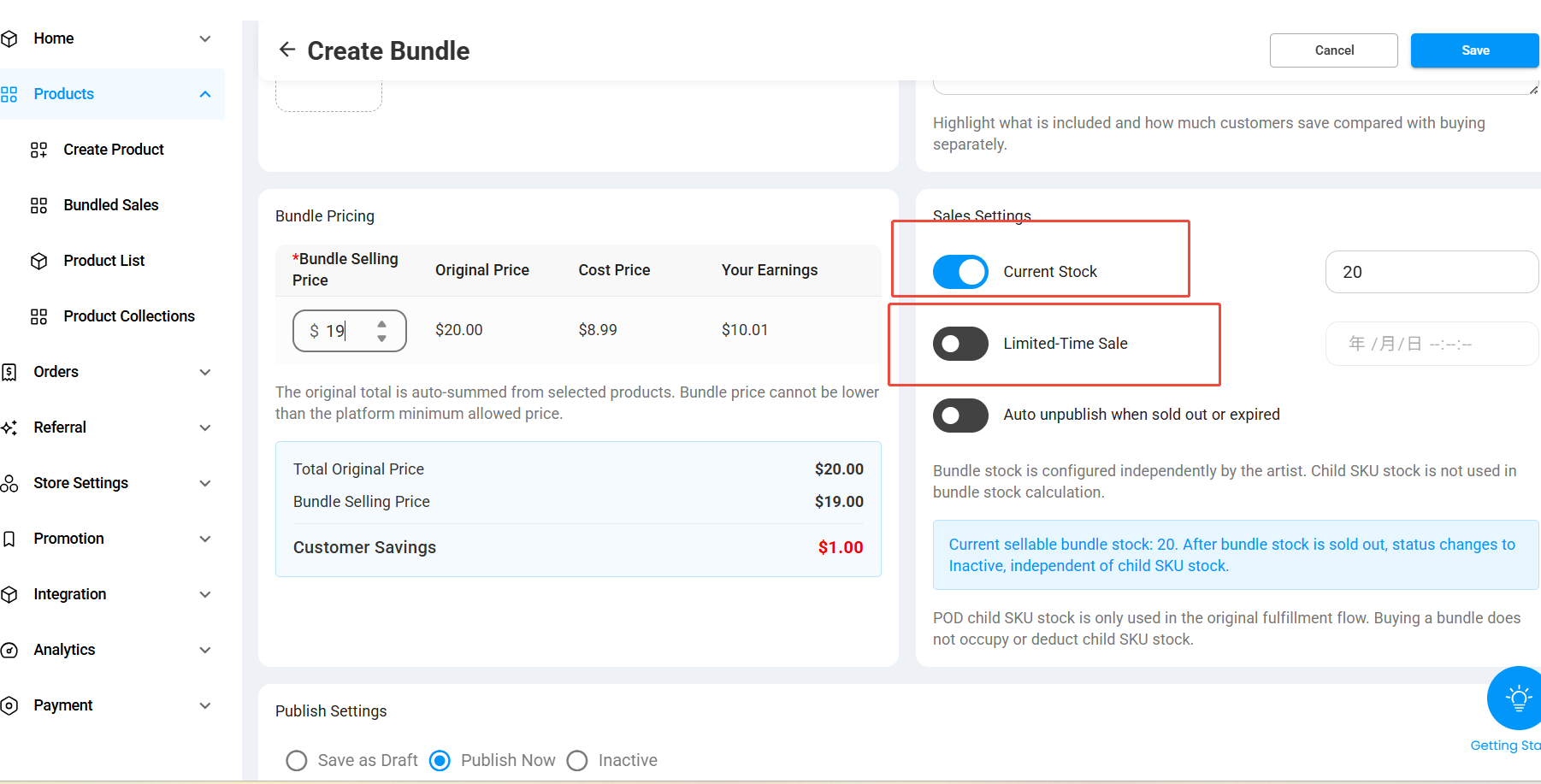
You can decide how your bundle will be sold.
Current Stock
Set how many bundles are available for customers to purchase.
Once the available stock reaches zero, the bundle will no longer be available for sale.
Limited-Time Sale
Turn this on if you only want the bundle to be available for a specific period.
Set the end date and time for the offer.
You can also enable:
Auto unpublish when sold out or expired
This will automatically remove the bundle from sale once the stock runs out or the promotion ends.
7. Save and Publish Your Bundle
Once everything is ready, choose your publishing status:
- Save as Draft — finish it later
- Publish Now — make the bundle available immediately
- Inactive — save the bundle without making it available for purchase
Click Save to finish.
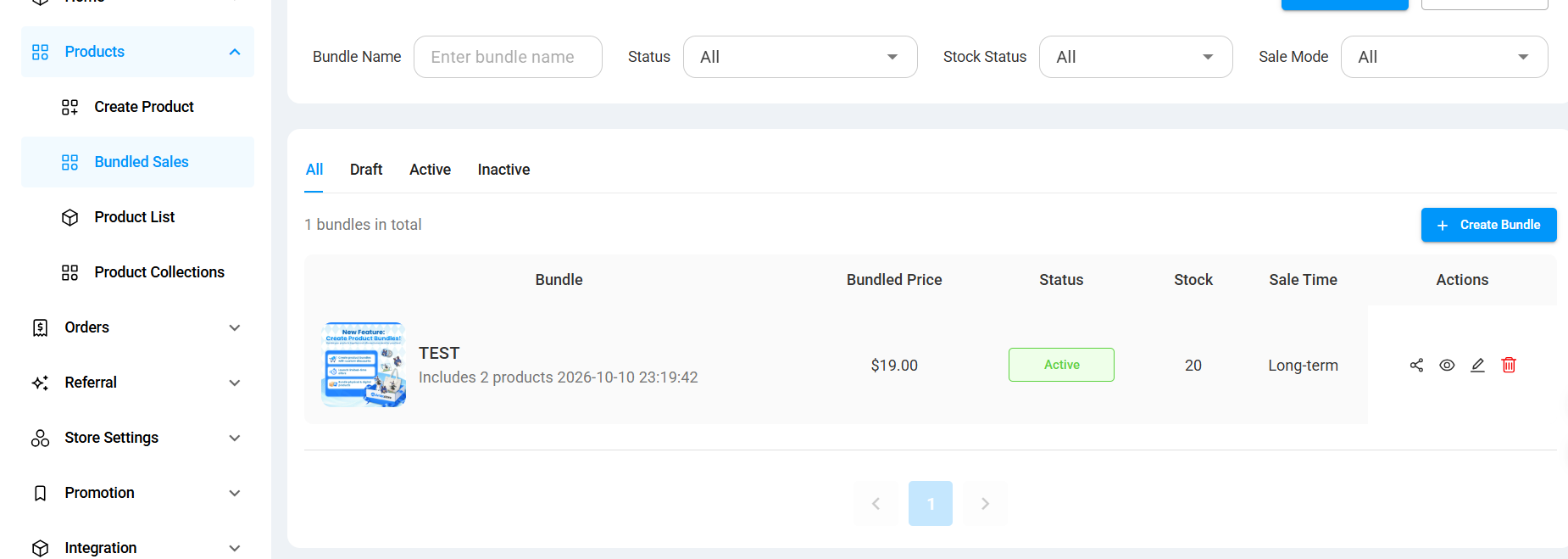
Your new bundle will then appear under:
Products → Bundled Sales
From here, you can view its:
- Bundle price
- Status
- Stock
- Sale period
- Actions
You can also edit, preview, share, or delete your bundle.
8. Preview Your Bundle in Your Store
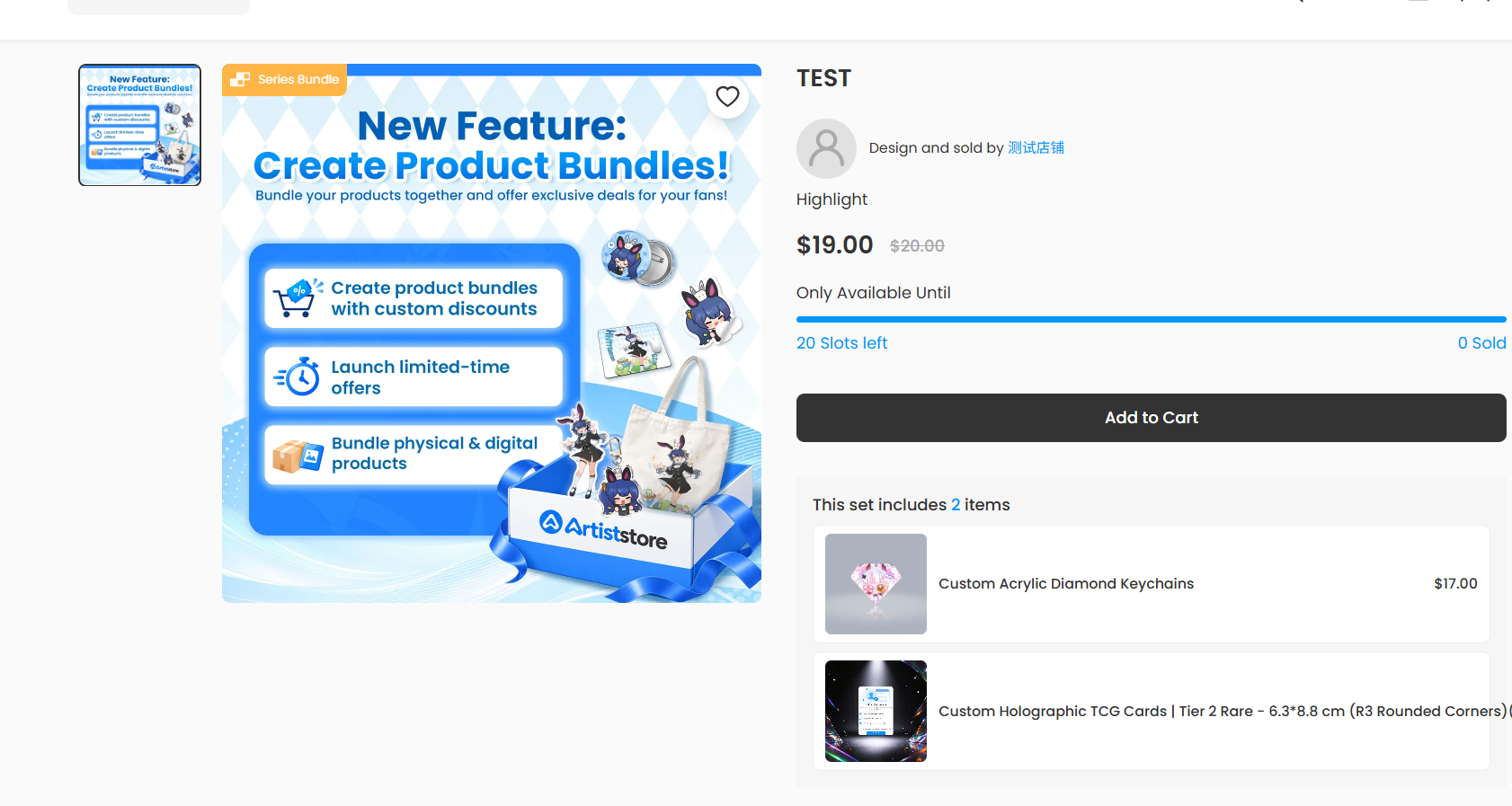
Click the Preview icon from your Bundled Sales list to see how the bundle appears to shoppers.
On the bundle page, customers can see:
- Bundle cover image
- Bundle name
- Bundle price
- Original price
- Available stock
- Products included in the bundle
- Bundle details
- Add to Cart button
Once published, customers can purchase the complete set directly from your Artiststore.
Tips for Creating a Great Bundle
Try grouping products that naturally work well together, such as:
- Matching keychains + cards
- Character-themed collections
- Seasonal merch sets
- New product launch bundles
- Limited-edition sets
- Physical + digital product combinations
Bundles can be a great way to increase the value of each order while giving fans an easier way to collect multiple products at once.
Ready to create your first bundle?
Go to Products → Bundled Sales → Create Bundle and start building your set.