

A practical FAQ for artists who want to run promotions, encourage purchases, and share offers with their audience.
Quick path: You can create and manage promo codes in your Artist Dashboard under Store Management → Promo Code Settings.
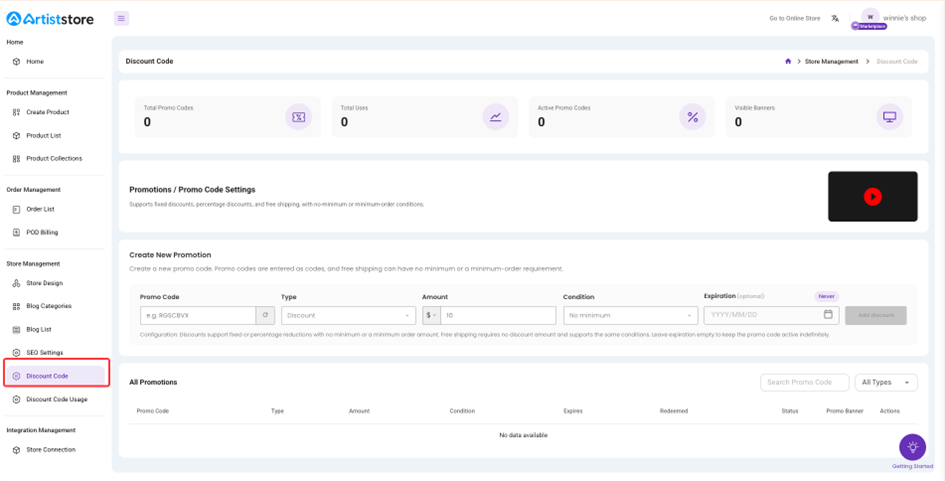
1. What types of promo codes can I create?
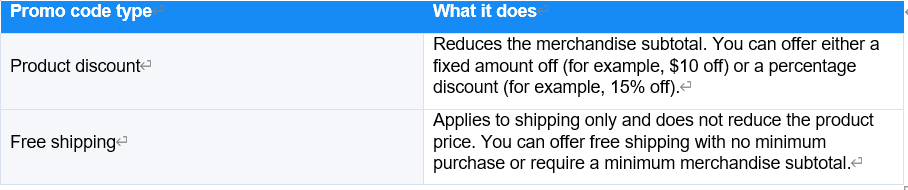
Artiststore currently supports two types of promo codes: product discounts and free-shipping offers. Promo
 2.How do I create a promo code?
Go to Store Management → Promo Code Settings, then complete the fields in the Create New Promotion section.
Step 1: Enter a promo code
Enter the code you want customers to use at checkout, or use the random-code generator.

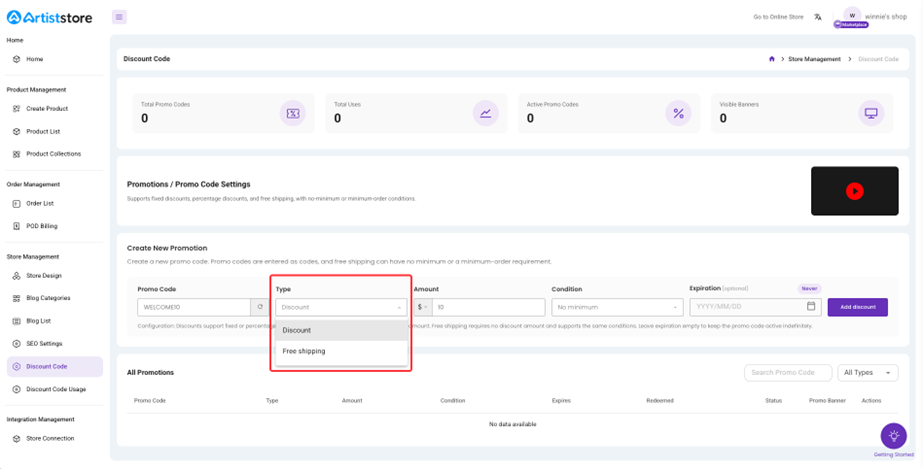
Step 2: Choose the promotion type
Choose one of the following:
· Discount — continue to set a discount amount.
· Free shipping — no discount amount is required.
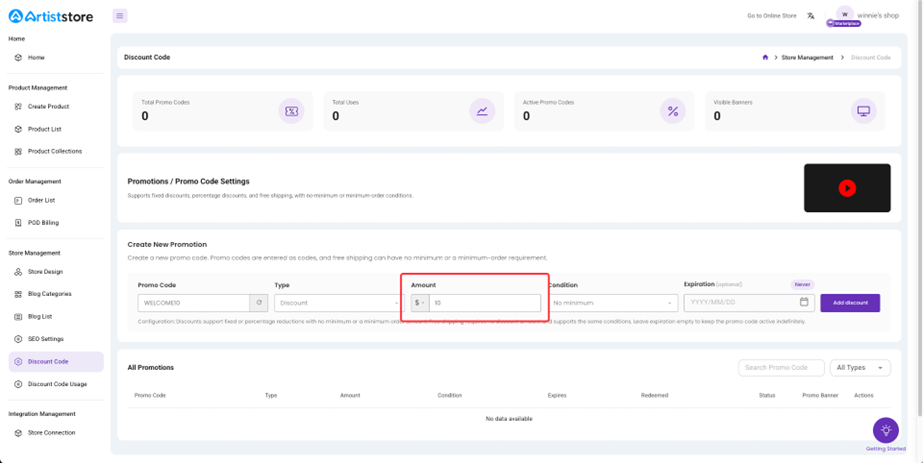
Step 3: Set the discount amount
If you selected Discount, choose how the discount should be calculated:
· Fixed amount ($), such as $10 off.
· Percentage (%), such as 15% off.
Step 4: Set the usage condition
Choose when customers can use the promo code.
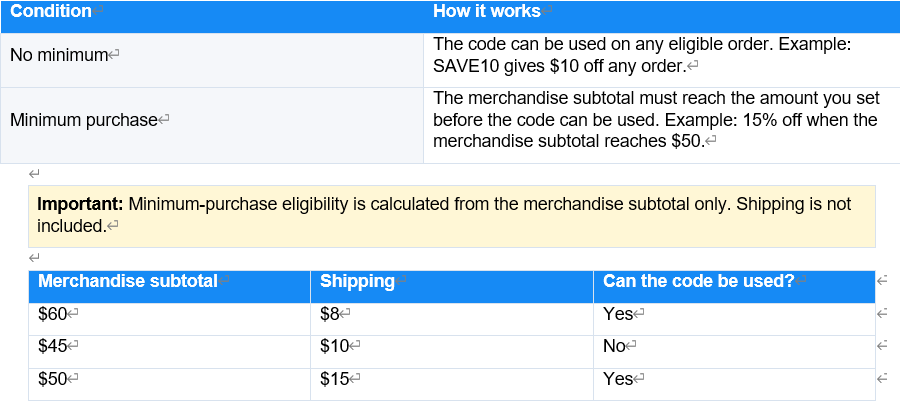
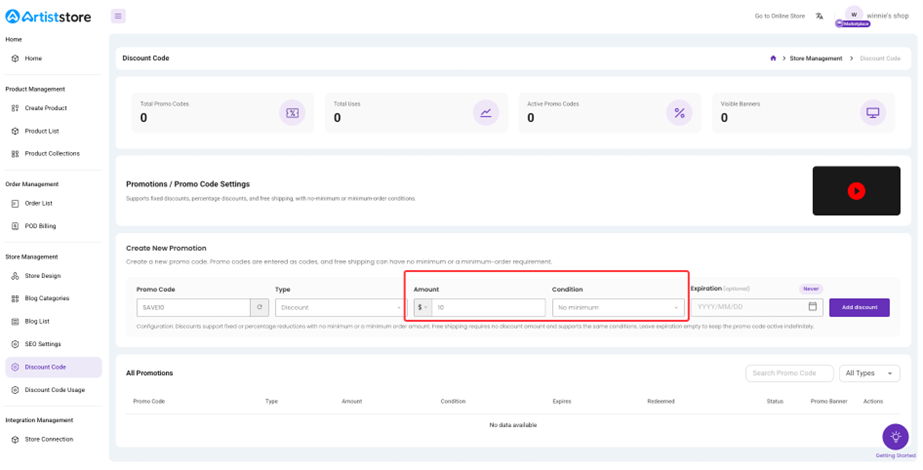
Set a minimum purchase condition when needed.
Step 5: Set an expiration date
You can choose an expiration date for the promo code. If you leave the field blank, the system will show Never, which means the code remains valid until you manually turn it off or delete it.

Step 6: Create the promo code
Once all fields are complete, click Add discount. The new promo code will then appear in your promo-code list.
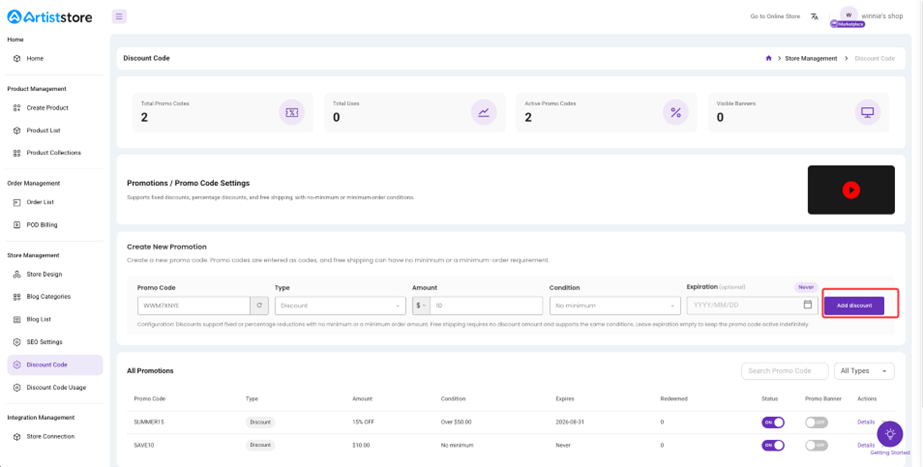
Click Add discount to create the promotion.
3. What does the Status switch do?
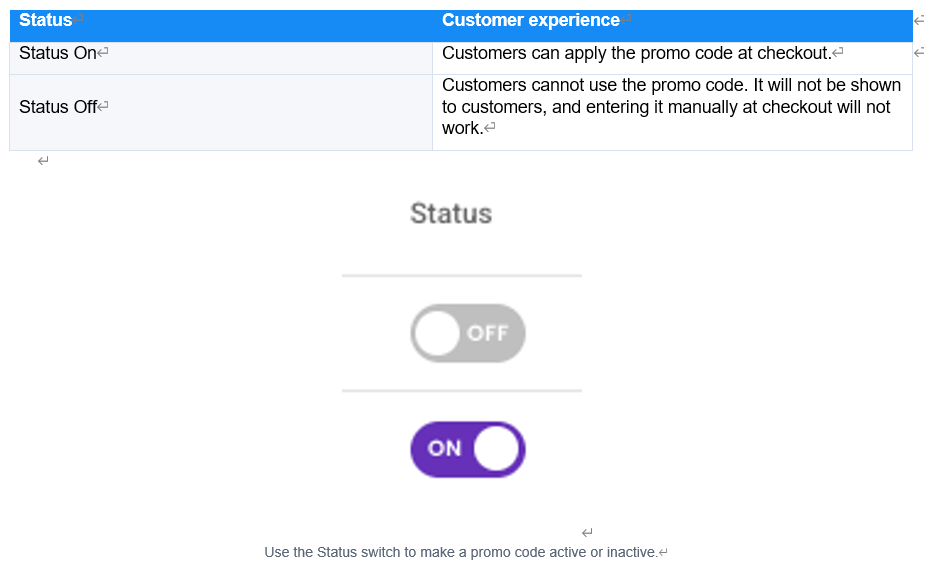
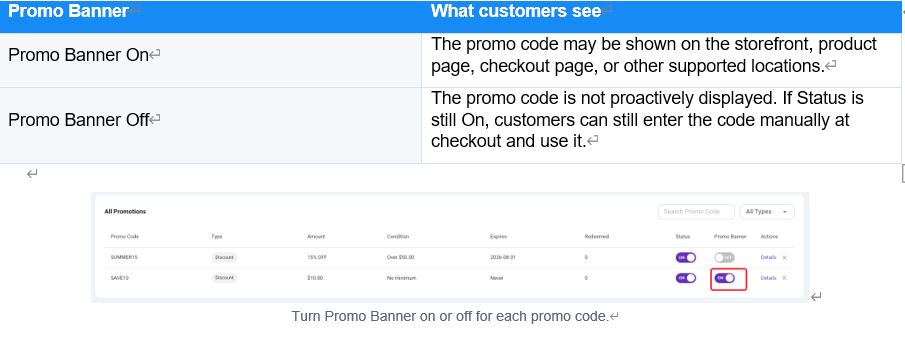
4. What is the Promo Banner setting?
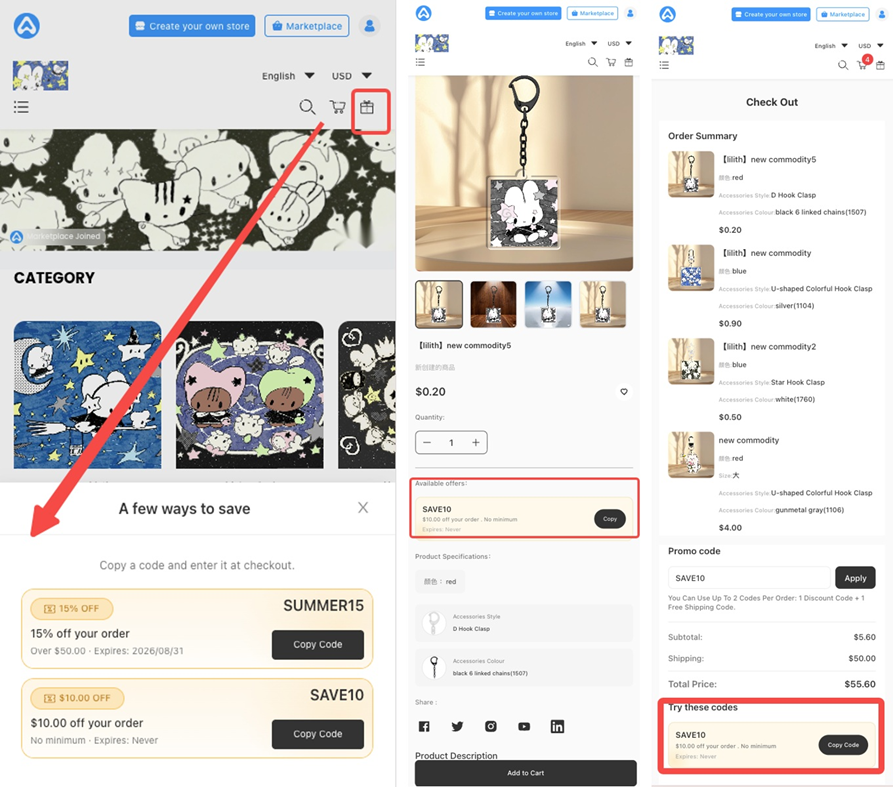
Promo Banner controls whether an active promo code is proactively shown to customers.
5. Can customers use more than one promo code on the same order?
To prevent discounts from stacking too heavily, an order can use at most one product discount plus one free-shipping promo code.

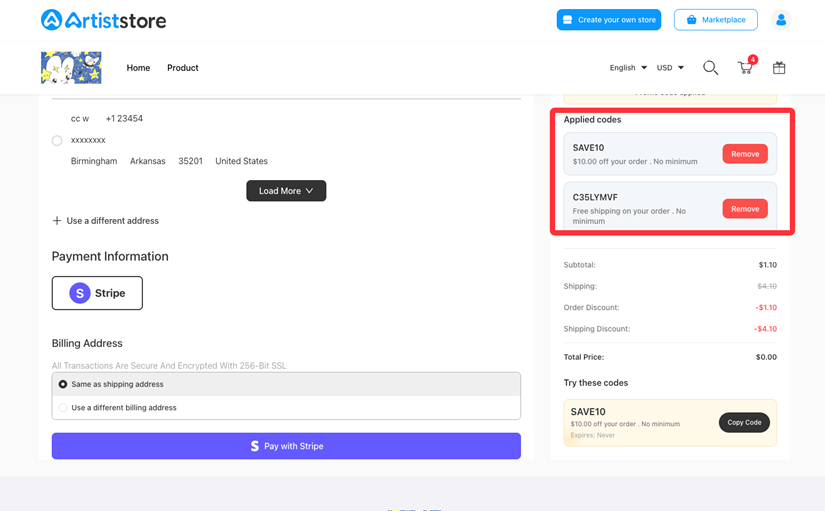
A product discount and a free-shipping code can be combined on the same order.
6. How do refunds work when a promo code was used?
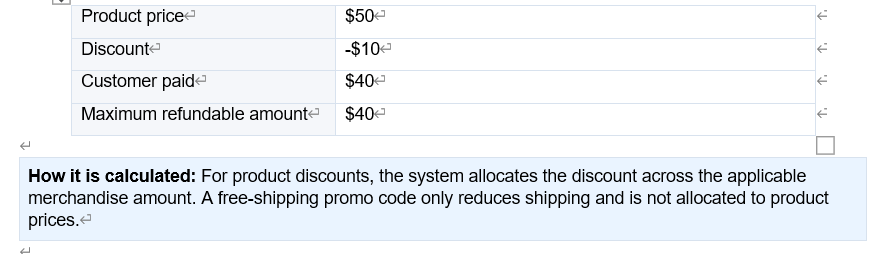
If an order is refunded after a promo code was used, the refund amount is based on what the customer actually paid.
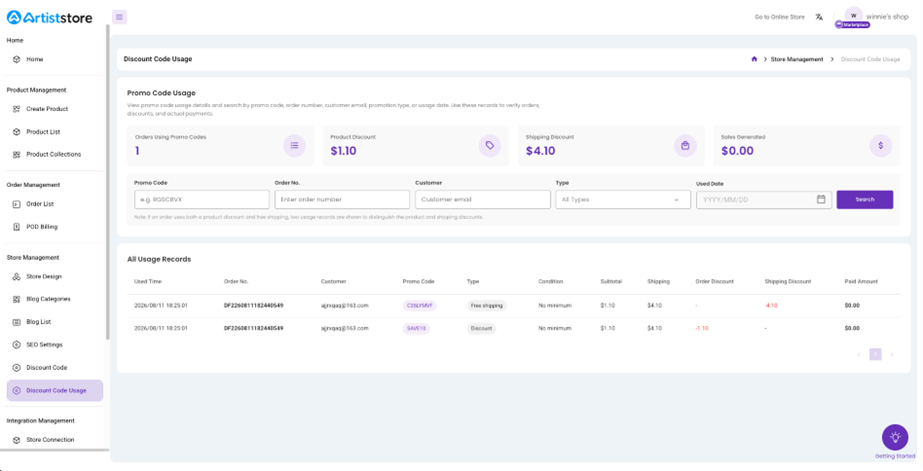
 7. Where can I see how my promo codes are being used?
In the Artist Dashboard, go to Store Management → Usage Details.
You can review:
· Date and time used
· Order number
· Customer
· Promo code
· Promotion type
· Usage condition
· Merchandise subtotal
· Shipping
· Product discount amount
· Shipping discount amount
· Amount paid
· Order status
Note: If the same order uses both a product discount and a free-shipping code, the system shows two separate usage records so you can review each discount clearly.
8. What are some good ways to use promo codes?
Use short, memorable codes that are easy to share and clearly match the campaign.

Quick setup checklist
· Choose a short, memorable promo code.
· Select Discount or Free shipping.
· For Discount, choose a fixed amount or percentage.
· Set a minimum purchase requirement if needed.
· Add an expiration date, or leave it as Never.
· Click Add discount.
· Make sure Status is On when you want the code to work.
· Turn Promo Banner On if you want the offer to be proactively shown to customers.
· Review Usage Details to track how your codes are being used.
Ready to promote: That’s it — your promo code is ready to share with your audience.