Beyond POD: Sell Physical Merch, Digital Products & Bundles
November 3,2026 6:35 PM(UTC+8) 36 views
Your artwork doesn’t have to fit into a single way of selling. Maybe you make your own merch, create downloadable illustrations, or want to turn a few fan favorites into a collectible set. Your Artiststore shop can now make room for all three.
Alongside print-on-demand (POD), Artiststore supports self-fulfilled physical products, digital products, and product bundles. That gives you more freedom to choose what to sell—and gives your fans more ways to collect your work.
Here’s how each option works and how to set it up in your Artiststore dashboard.
Three More Ways to Sell Your Art on Artiststore
1. Self-Fulfilled Products: Sell Merch You Already Have
Already make or stock your own items? With Self-Fulfilled Products, you can list them in your Artiststore shop, add photos and descriptions, and set your own prices.
Unlike POD orders, these products are fulfilled by you. That includes:
• Managing inventory
• Packing each order
• Shipping products to customers
• Providing shipment tracking information
Important: Self-fulfilled physical products currently support sales in the United States only. You’ll need to contact Artiststore Support to enable this feature for your account before creating listings. Remember to factor shipping costs into your pricing.
2. Digital Products: Turn Downloads Into Shop Listings
Not every creation needs to be printed. If you sell digital art or resources, you can upload downloadable files and offer them directly through Artiststore.
Digital products could include:
• Digital illustrations and artwork
• Design files
• Asset packs
• Other downloadable creative content
Once a customer completes a purchase, they can access the corresponding digital files—no manufacturing or physical delivery required. It’s a practical option for creators whose work already lives on a screen.
3. Product Bundles: Put Related Items Together
Product Bundles let you combine multiple listings into one set with its own bundle price. Think acrylic keychains paired with trading cards, character stickers with pins, matching merch from an original character (OC) series, or seasonal collections.
You can also pair physical merch with digital content. A bundle gives fans a convenient way to pick up related items together, while a thoughtfully priced set can encourage larger orders.
How to Add Self-Fulfilled and Digital Products
Both product types start from the product creation area of your Artiststore dashboard.
Step 1: Open the Product Creation Page
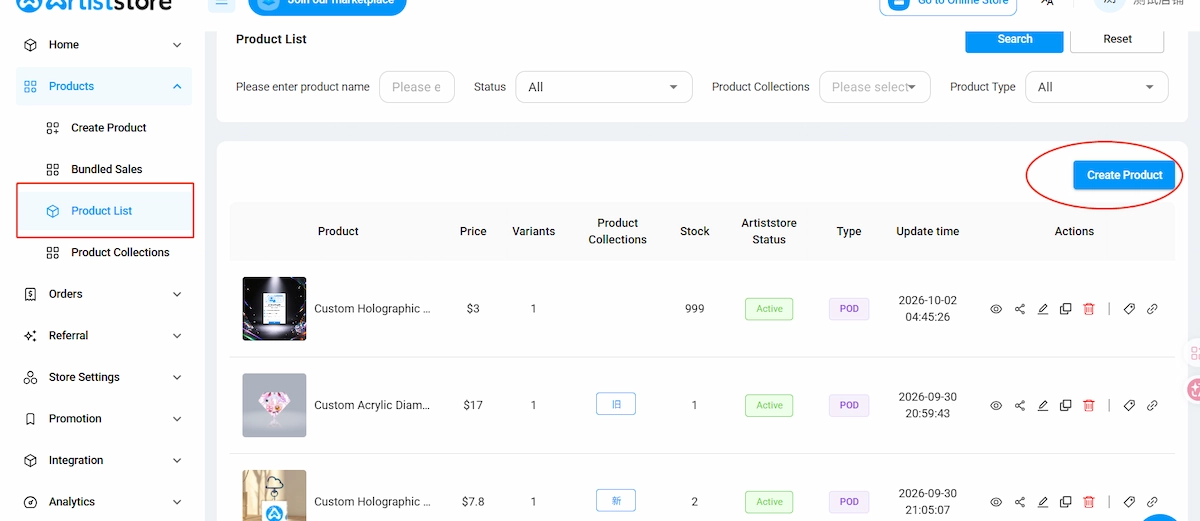
Sign in to your Artiststore artist dashboard and go to:
Products → Product List → Create Product
Click Create Product to begin.
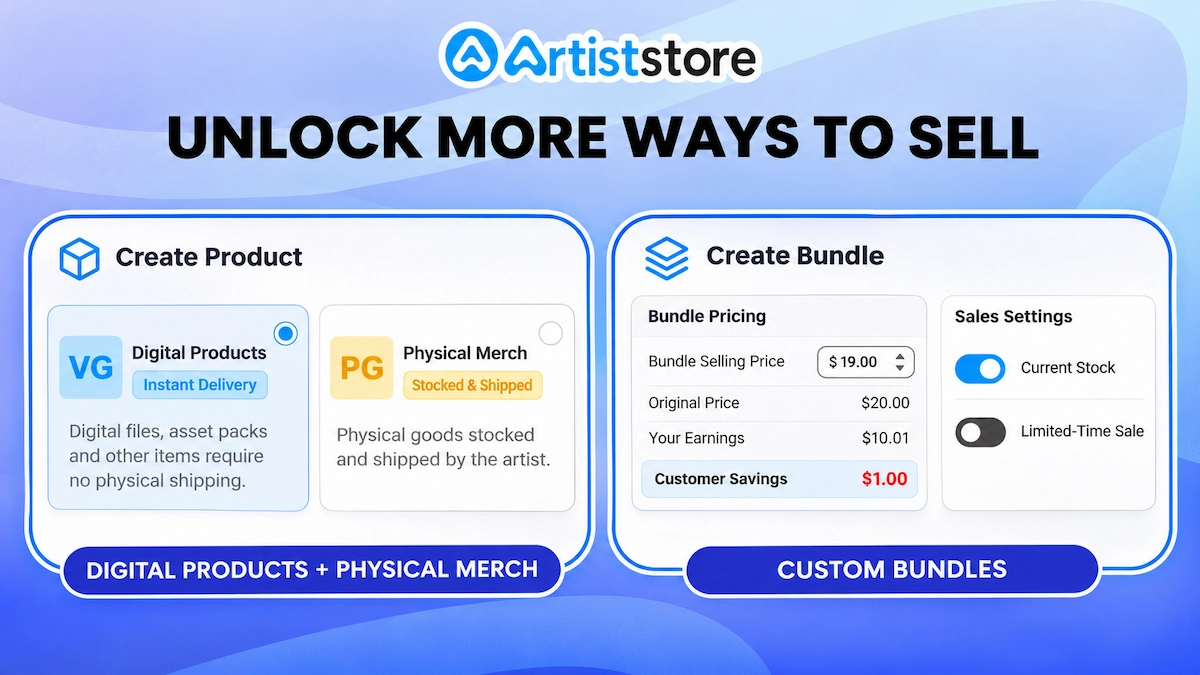
Step 2: Choose Your Product Type
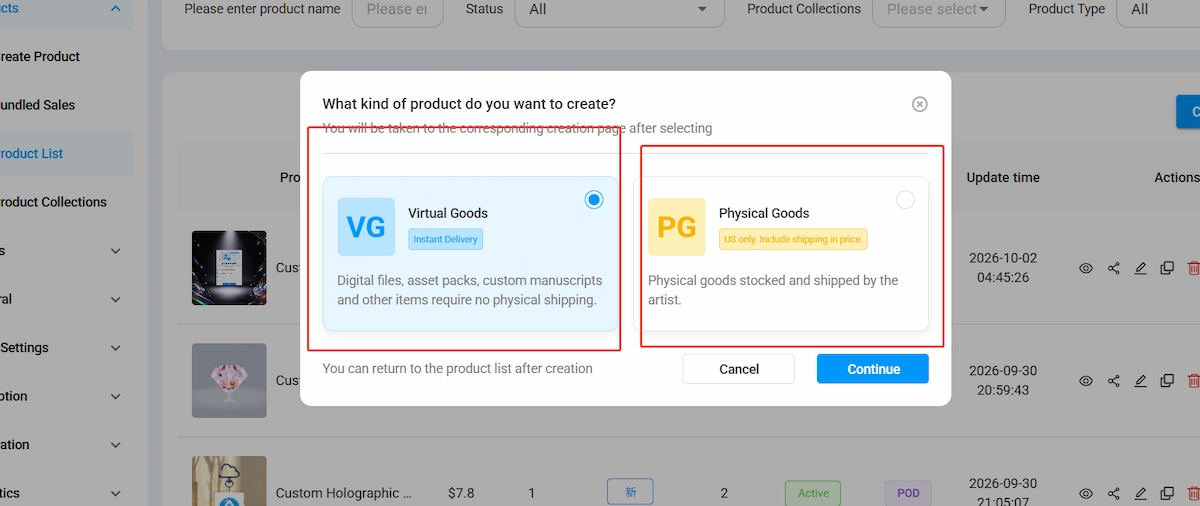
Select the option that matches what you want to sell:
• Virtual Goods (Digital Products): For downloadable illustrations, design files, asset packs, and similar content.
• Physical Goods (Self-Fulfilled Products): For products you already stock and will pack and ship yourself.
Click Continue after making your selection.
Before you proceed: Self-fulfilled physical sales are currently limited to the United States and require account access from Artiststore Support. Include expected shipping expenses when setting your prices.
Step 3: Complete Your Product Listing
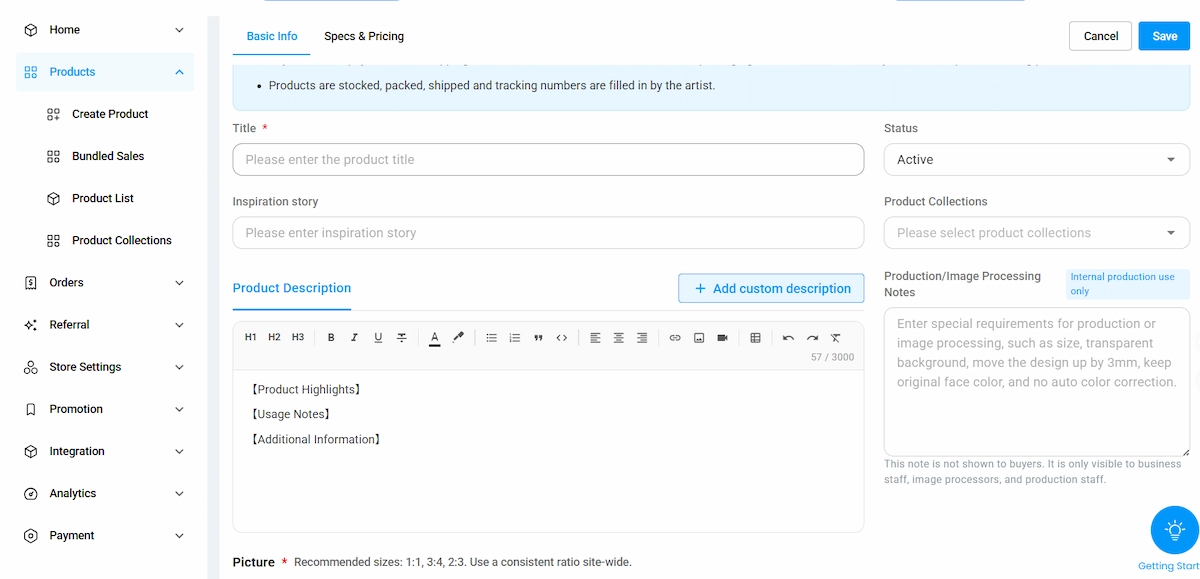
Follow the on-screen prompts to fill in your listing details:
• Product Title — Name your item clearly.
• Product Images — Upload photos or product visuals.
• Product Description — Explain what customers will receive.
• Product Collections — Assign the item to a relevant collection.
• Specifications & Pricing — Set product options and the selling price.
Review the information, then click Save.
Step 4: Preview and Publish
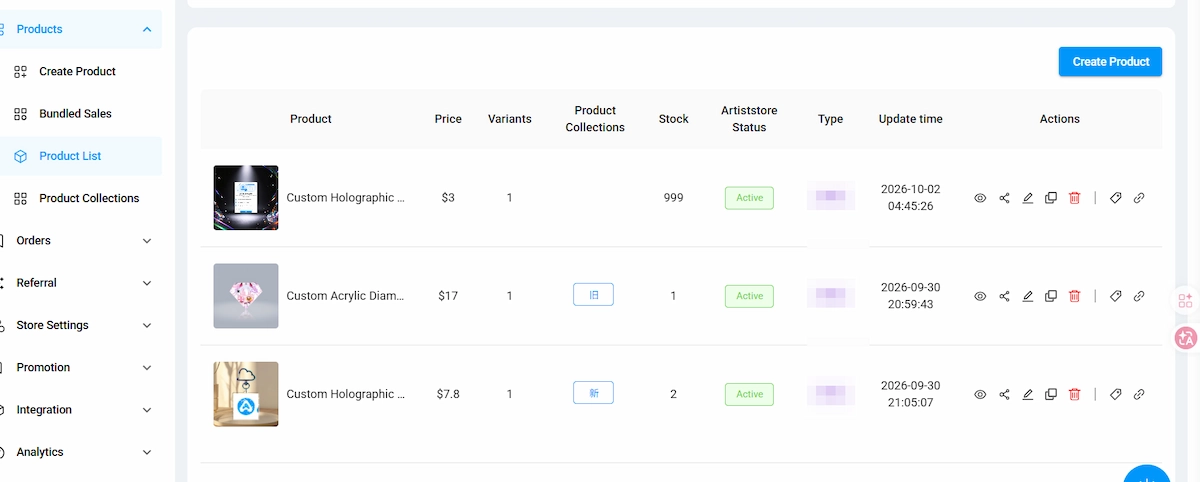
Return to Products → Product List to find your new listing. From here, you can edit product details and click Preview to check how the item appears in your shop.
When everything looks right, make sure the listing is published and active so customers can view and purchase it.
Need access to self-fulfilled or digital products? Contact Artiststore Support through the Artiststore Discord
How to Create a Product Bundle on Artiststore
Want to sell several items as one set? Use Bundled Sales in your artist dashboard. Each bundle must contain at least two products and can include up to ten.
Step 1: Open Bundled Sales
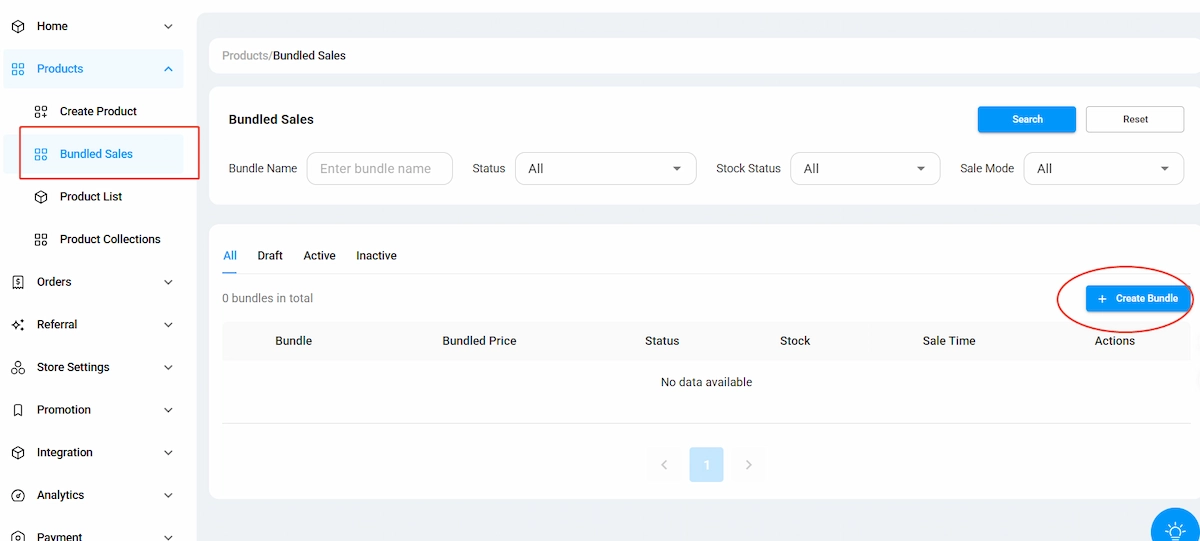
In your dashboard, go to:
Products → Bundled Sales
Click Create Bundle.
Step 2: Add the Products You Want to Bundle
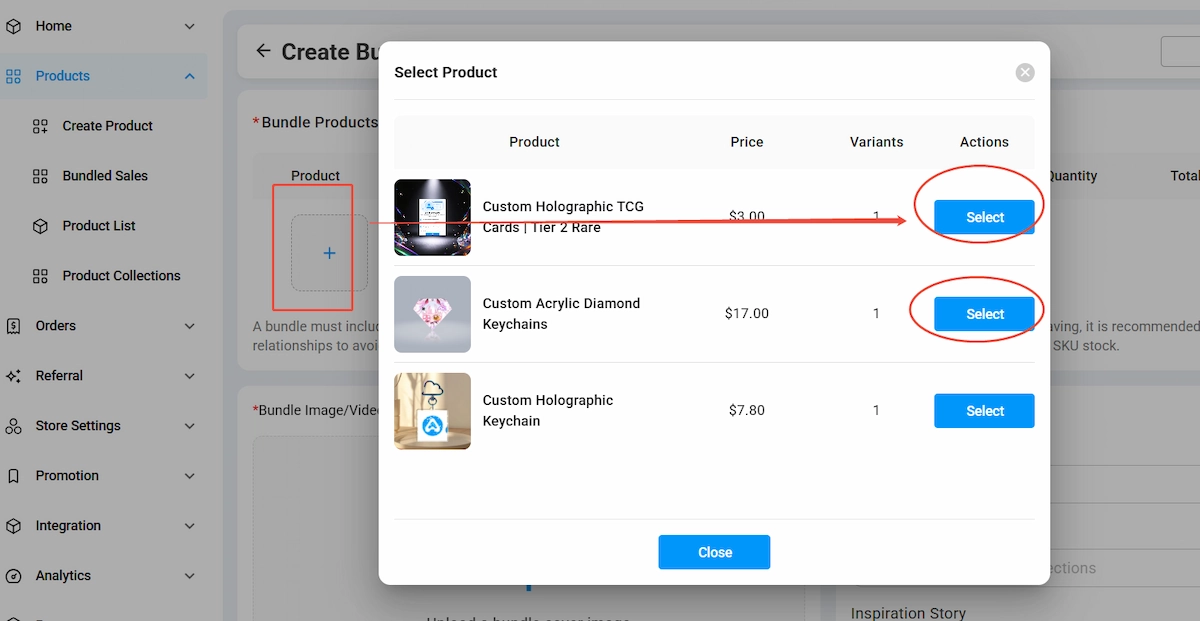
In the Bundle Products section, click Add Product. Choose items from your existing listings, then click Select to add them.
You’ll need a minimum of 2 products and can include up to 10 in one bundle.
Step 3: Set the Quantity of Each Item
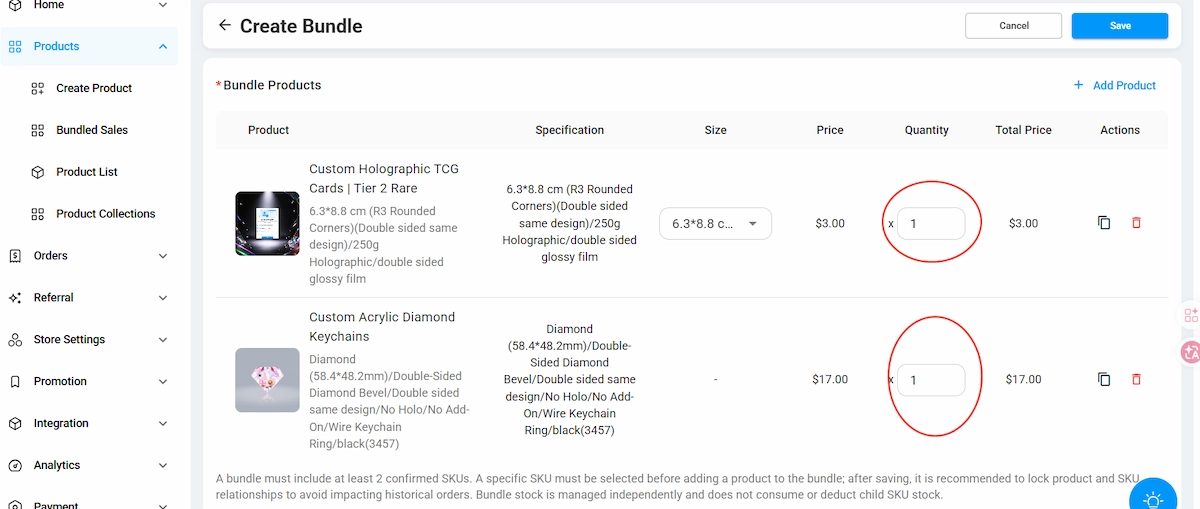
Choose how many units of each product are included in a single bundle. For example:
• 1 keychain
• 2 trading cards
• 1 sticker
Artiststore updates the combined value based on the items and quantities you select.
Keep in mind: These numbers describe what’s inside one bundle. The total number of bundles available for sale is set separately under Sales Settings.
Step 4: Add a Cover Image and Bundle Details
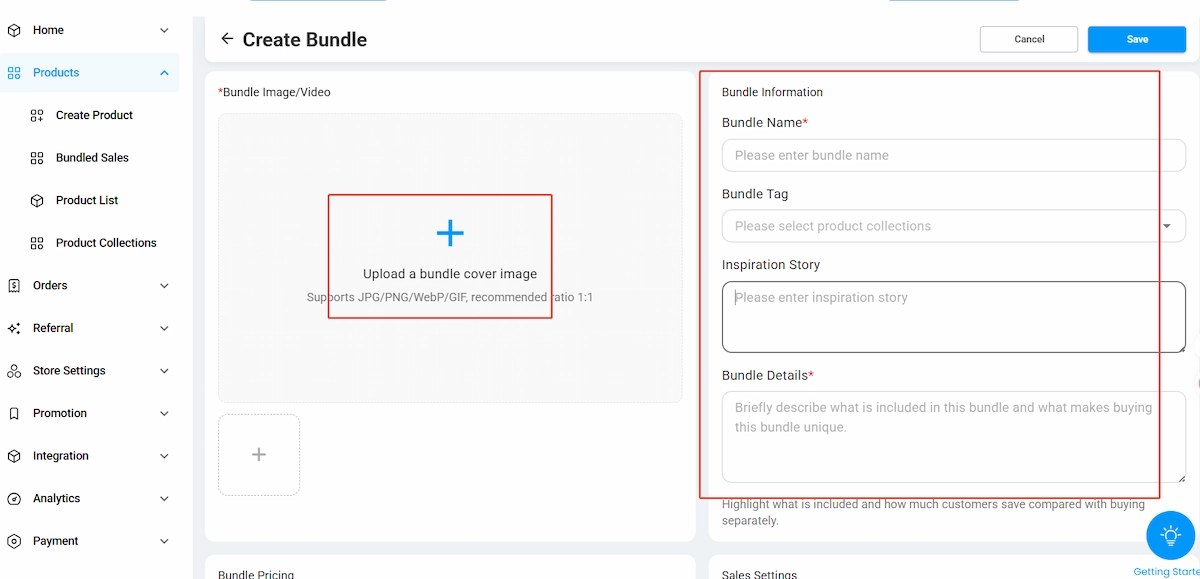
Give your set its own shop listing. You’ll be asked to provide:
• Bundle Cover Image — Upload the image representing the complete set.
• Bundle Name — Choose a name that makes the theme or contents clear.
• Bundle Tag — Select the appropriate category or collection.
• Inspiration Story — Share the idea behind the set.
• Bundle Details — List the included products and explain what makes the bundle special.
A clear cover image and an exact list of what’s included help customers understand what they’re buying before they add it to their cart.
Step 5: Choose Your Bundle Price
Under Bundle Pricing, set a selling price for the complete set. The dashboard shows:
• Original Price — Total price if the included products were bought individually.
• Cost Price — Combined production cost of the included products.
• Your Earnings — Estimated earnings from the bundle.
• Customer Savings — Amount saved compared with buying each product separately.
Use these figures to balance customer value with your own expected earnings. A bundle discount can be appealing, but it should still make sense for your shop.
Step 6: Set Stock and Sale Timing
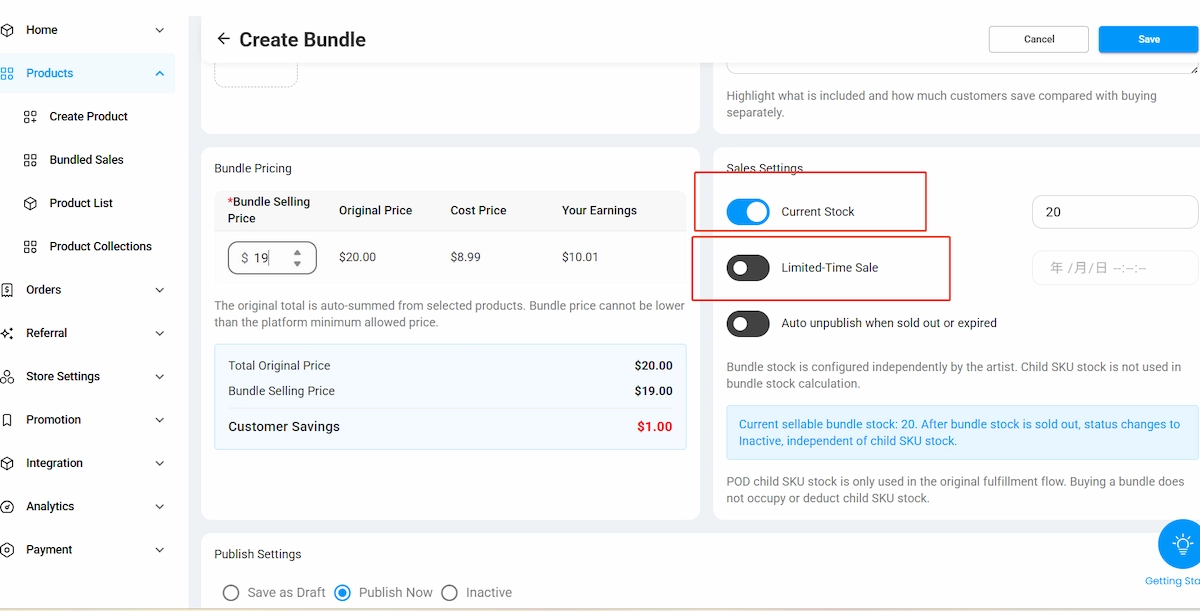
Under Sales Settings, decide how and when the bundle can be sold:
• Current Stock — Set how many bundles customers can purchase. When available stock reaches zero, the bundle can no longer be sold.
• Limited-Time Sale — Set an end date and time if the offer is available only for a limited period.
• Auto Unpublish When Sold Out or Expired — Automatically take the bundle offline when it sells out or the promotion ends.
Step 7: Save or Publish the Bundle
Once your settings are complete, choose a publishing status:
• Save as Draft — Keep the bundle unpublished while you work on it.
• Publish Now — Make the bundle available to customers immediately.
• Inactive — Save it without making it available for sale.
Click Save. You can then return to Products → Bundled Sales to manage its price, status, stock, and sale period—or edit, preview, share, and delete it.
Step 8: Check the Customer-Facing Page
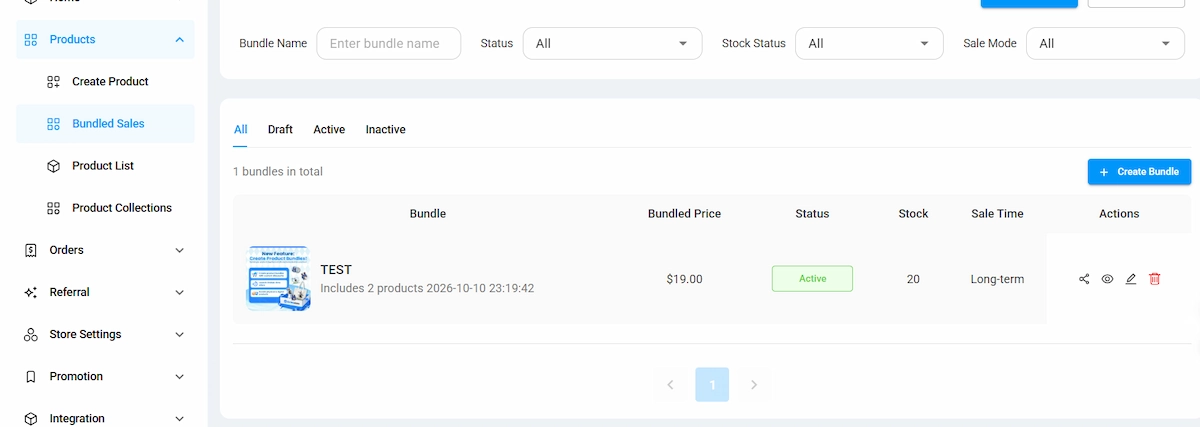
Use Preview from the Bundled Sales list to see how the bundle looks in your store. Customers can see its cover image, name, price, original item total, available stock, included products, and description, along with an Add to Cart button.
Once published and available, the complete set can be purchased from your Artiststore shop.
Five Bundle Ideas Worth Trying
A good bundle feels like a collection, not a random group of leftovers. If you’re deciding what to put together, start with something your audience already connects with.
1. An Original Character Merch Set
Group items featuring the same OC—perhaps an acrylic keychain, a sticker, and a trading card. Fans who love that character can collect several pieces in one purchase.
2. A Matching Collection
Bring together designs from the same series, such as pins featuring different characters or a set of illustrated trading cards. This works especially well when your artwork shares a recognizable theme.
3. A Seasonal or Holiday Bundle
Create a Halloween, Christmas, or Valentine’s Day set using themed stickers, charms, and cards. A limited-time selling window can give the collection a clear occasion.
4. A New-Release Bundle
Pair a newly launched design with a few existing favorites. It introduces your latest work while helping customers discover more of your catalog.
5. Physical Merch Plus Digital Art
Try an acrylic keychain with a downloadable wallpaper, or a physical trading card paired with a digital illustration. Your fans get something to display and something to use digitally.
More Formats, More Room for Your Creativity
POD is still a useful way to bring artwork into the physical world. But it doesn’t have to be the only way you sell.
With self-fulfilled merch, digital downloads, and product bundles, you can build a shop around the kinds of things you actually create—and around how your fans like to collect them. Start with one product type, experiment with a themed set, and see what fits your work.
Ready to try it? Open your Artiststore dashboard and create your first self-fulfilled product, digital download, or bundle.